Staff Sign-In Options
Your staff can check patients into your office at any
Your patients can also check themselves in from a dedicated Patient Sign In station. (See "Patient Sign-In" for details.)
Sign In Patient / Update Patient Tracker From Scheduler - Right-click an appointment in your schedule and select Patient Tracker. You can then sign a patient into your office, update the Patient Tracker status, and exit the patient. See "Patient Tracker" for details. The current Patient Tracker status is displayed at the bottom of the patient's appointment for your reference.
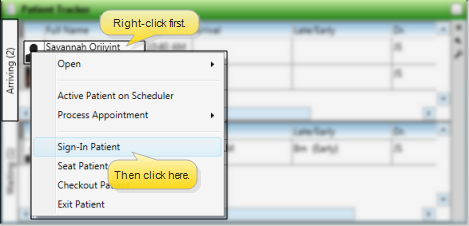
 Sign In from Patient Tracker - If you have enabled the Arriving section in your Patient Tracker, you can use drag and drop, or right-click a patient and select sign-in to check the patient into your office. See "Patient Tracker" for details.
More Information
Alert Bypass - Alerts and appointment messages are not issued when the patient is not signed in via the Patient Sign In screen. See "Patient Sign-In" for details.
Sign-In Icons - Once a patient signs into your

www.ortho2.com │ 1107 Buckeye Ave. │ Ames, IA 50010 │ 800.346.4504 │ Contact Us
Chat with Software Support │ Chat with Network Engineering │ Chat with New Customer Care
Remote Support │ Email Support │ Online Help Ver. 11/11/2019


