Set Up Sign-In Screen Background
The background of your Patient Sign-In screen can be a solid color, or any graphic you choose.
-
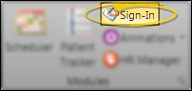
 Open Patient Sign In Editor - Home ribbon bar > Modules Section >
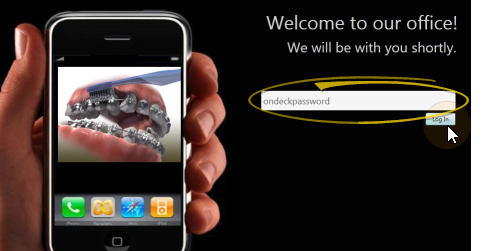
  Sign-In > Password > Log In. If you do not have a sign-in prompt, you can press Ctrl+E on your keyboard and enter your sign-in password to enter editing mode.
 -
Open Background Options - Right-click anywhere on the screen to open a menu of background choices.

-
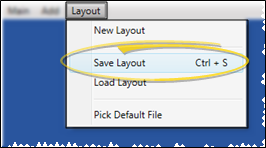
Save Changes - From the Sign In Editor ribbon bar, click Layout, and choose Save Layout (or press Ctrl-S on your keyboard) to save any changes you have made to the screen. (See "Manage Sign-In Screen Layouts" for details about creating and using multiple layouts.)
-
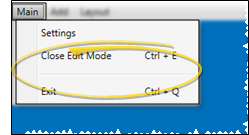
Exit Edit Mode - When you have finished making changes to your sign-in screen, click the Main button on the Sign In Editor ribbon bar. You can then choose Close Edit Mode (or press Ctrl-E) to reactivate patient sign-in, or Exit (or press Ctrl-Q) to close the sign-in window. If you re-activate Patient Sign-In without first saving changes, any changes you have made will remain in effect until you fully exit Patient Sign-In. When you then re-launch Sign-In, the layout changes will be erased.
More Information
Change Sign-In Screen Elements - Use the graphic interface options to add text, images, animations, slide shows, patient reward prize lists, and videos, creating dynamic and informative Patient Sign-In greeting screens. See "Set Up Patient Sign-In Screen" for details.