Publish and Share Edge Animations Videos
Use the Edge Animations publisher to save filmstrips as video files. You can publish them to your computer, upload the files to YouTube or Facebook, or send a link to videos via email so your patients and parents can watch them on their own devices.
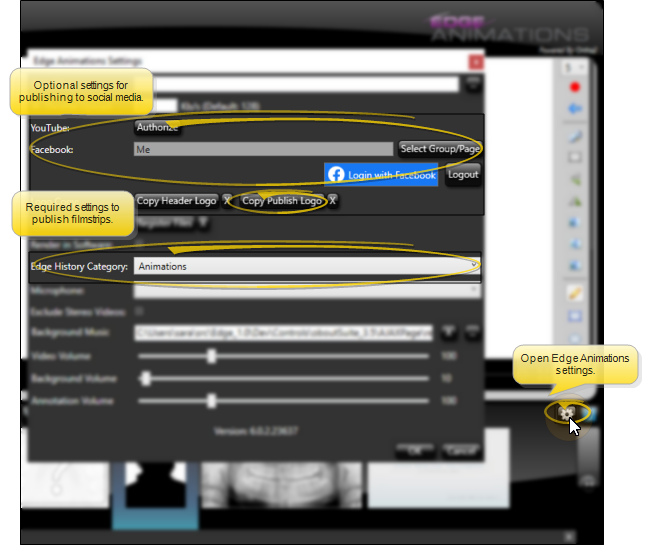
Before you can publish videos, you must set up the Copy Publish Logo and History Category options of your Edge Animations settings. In addition, if you want to upload videos to YouTube or Facebook, be sure to enter your account credentials. See "Set Up Edge Animations" for details.
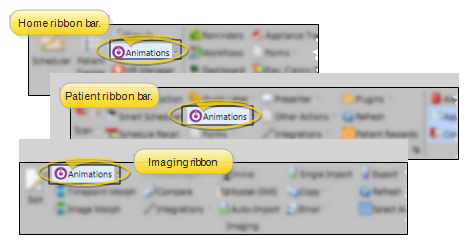
Select the  Animations icon from the Home, Patient, or Imaging ribbon bar. (You can also open this feature from the Quick Access toolbar at the top of your Edge Cloud system window.) When it is running, the Animations icon appears in your computer's notification area.
Opening Edge Animations for a Specific Patient - If you plan to work on or present filmstrips or videos that contain images or treatment information about a specific patient, it is best to open the patient folder first, then launch Edge Animations. This way, you can integrate the patient’s images into your filmstrip and customize them with your patient findings.
Patient Compliance Vs. Edge Animations - When you click the Edge Animations icon, your comprehensive Edge Animations module opens; You can optionally click the arrow beside the icon, then select to open either about-edge-animations.htm or the standard Compliance Animations video list.
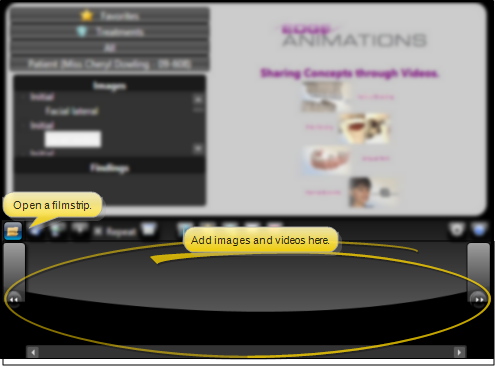
When you first launch Edge Animations, the filmstrip area at the bottom of the window is blank. You can either start creating a new filmstrip from scratch, or click  Open from the filmstrip ribbon bar to load an Edge Animations filmstrip that you have already saved into the window.
Click  Publish from the filmstrip ribbon bar, then select how you would like to publish your video.
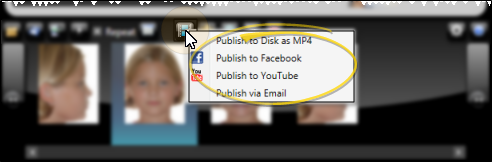
Use this option to save the filmstrip as an MP4 video file on your computer that you can view on nearly any device with a media player. After entering a job name and description, the video will be saved to the Output folder of the Data Files location specified in your Edge Animations settings. You can then navigate to the Output folder to view, copy, and share your new video.
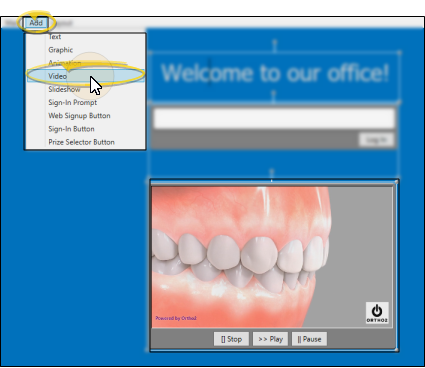
 Add Videos to Your Sign-In Screen - You can add educational or entertaining video clips, such as Edge Animations videos, to your patient sign-in screen.
Use this option to push the filmstrip directly to your practice's Facebook page. After you enter a job name and description, the video will be encoded and uploaded to the Facebook page specified in your Edge Animations settings. Be aware that this could take a significant amount of time, even several hours, to finish.
Professional Page Required - Due to potential security issues, you must post to your professional practice Facebook page: Facebook will not allow outside applications to post to personal Facebook pages.
Use this option to push the filmstrip directly to YouTube. After entering a job name and description, the video will be uploaded to the YouTube account specified in your Edge Animations settings. Be aware that this could take a significant amount of time, even several hours, to finish.
This option is available only when you launch Edge Animations from a patient folder.
When you open Edge Animations directly from a patient folder, you can email a link of the video to any email address associated with the patient, such as the patient,, responsible party, or professional. After entering a job name and description, you select the email address of the recipient(s) and complete the email message. (If multiple email addresses are available, you can use your Shift and Ctrl keys to select multiple recipient addresses.) A copy of the video link and the email message will be added to the appropriate Correspondence History
As soon as you select your publishing output, Edge Animations begins creating your video. Depending on how quickly the video can be created from the filmstrip, you may be able to start or suspend publishing, and remove videos to keep them from being published.
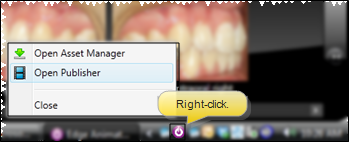
The publisher opens automatically when you begin publishing a video. However, you can open the publisher at any time from your computer's notification area. Right-click the Edge Animations icon in the notification area, and select Open Publisher.
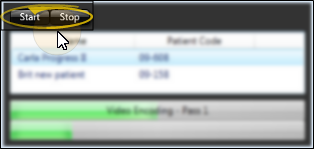
Depending on a video's status, you can use the Start and Stop buttons to suspend publishing a particular video.
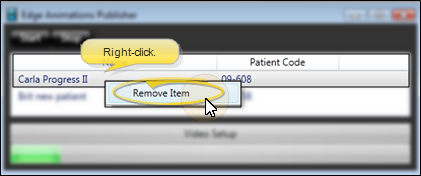
Right-click to remove a publishing job, preventing the video from finishing.