Use the Confirmation tab of your Sign-In
Home ribbon bar >
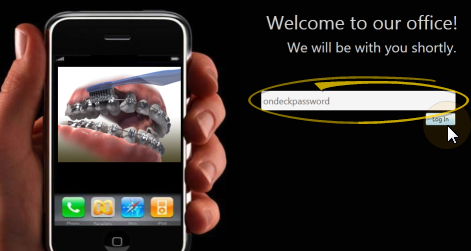
Open Sign-In > Password > Log In > Main > Settings.
Open Sign-In from the Tasks section of the Home ribbon bar.
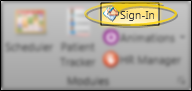
Log into Patient Sign-In editing mode with your sign-in password. (If you have not set up a password yet, just press Enter at the login prompt.
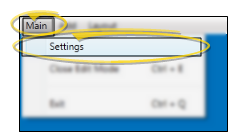
Click Main on the editing ribbon bar and select the Settings option.
Or, if you do not have a sign-in prompt, you can press Ctrl+E on your keyboard and enter your sign-in password to enter editing mode.
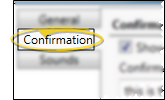
Open Confirmation tab - Click the Confirmation tab at the top of the Sign-In Settings editor.
Or, if you do not have a sign-in prompt, you can press Ctrl+E on your keyboard and enter your sign-in password to enter editing mode.
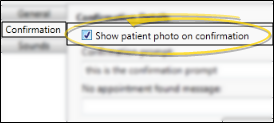
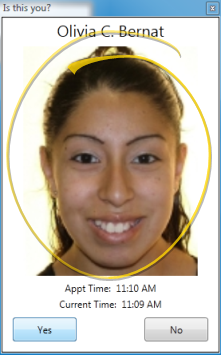
Patient photo - Enable this option to include an image of the patient on the
confirmation screen.
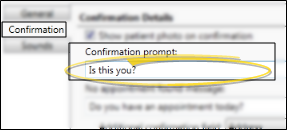
Patient confirmation prompt - Type a message that prompts your patients to confirm that the displayed information is theirs. We recommend the default prompt Is this you or something similar.
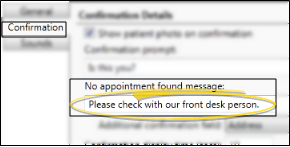
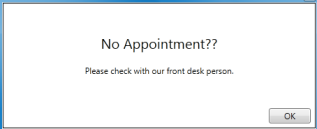
No appointment - Type a message to display when a patient that does not have an appointment scheduled for today attempts to sign in. We suggest Check with our front desk person please or something similar.
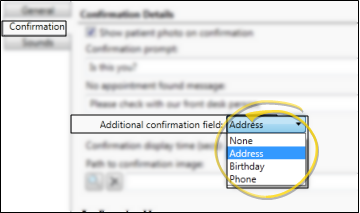
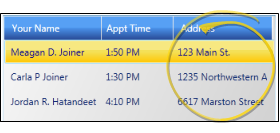
Additional confirmation display field- You can display an additional field of information in the list of matching names that appears after the patient types his or her name into the Patient Sign-In prompt. Select Address, Birthday, Phone number, or None. This setting helps avoid the confusion that could result from multiple patients with identical or similar names.
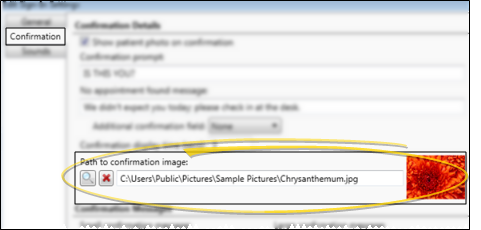
Image - (Optional.) Click
Browse and select a picture to use as the background of your screen.
beside the path field.
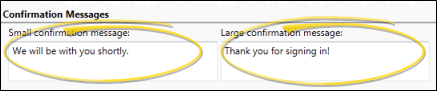
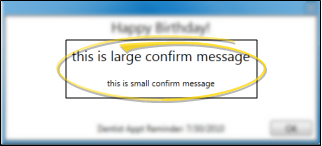
Confirmation messages - Type a primary and secondary message for your patients to see as they complete the Patient Sign-In process.
Save - Click to Save your changes at the bottom of the editing window.
Freshen up - Consider changing your confirmation image and messages regularly to offer your patients a fresh look whenever they come to your office.
Workstation-Specific - These properties are specific to your workstation. Other stations in your system may have other settings.
Ortho2.com │1107 Buckeye Avenue │ Ames, Iowa 50010 │ Sales: (800) 678-4644 │ Support: (800) 346-4504 │ Contact Us
Remote Support │Email Support │New Customer Care │ Online Help Ver. 8/3/2015