Use the General tab of your Sign-In Settings editor to set up your sign-in password, as well as special alerts and notification messages.
Home ribbon bar >
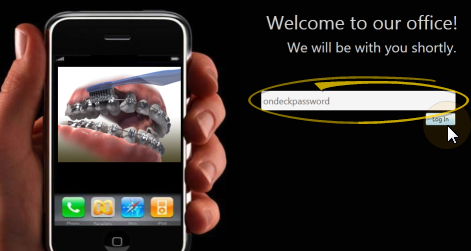
Open Sign-In > Password > Log In > Main > Settings.
Open Sign-In from the Tasks section of the Home ribbon bar.
Log into Patient Sign-In editing mode with your sign-in password. (If you have not set up a password yet, just press Enter at the login prompt.
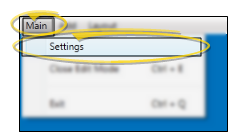
Click Main on the editing ribbon bar and select the Settings option.
Or, if you do not have a sign-in prompt, you can press Ctrl+E on your keyboard and enter your sign-in password to enter editing mode.
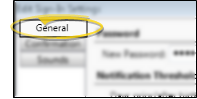
Open General tab - Click the General tab at the top of the Sign-In Settings editor.
Password - Type a new password in the New Password field, then type the exact same password in the Confirm Password field. Click Change to verify that the passwords match, and complete the change.
You use this password to exit Patient Sign In, and to access the editing features of your sign-in screen. If you do not create a sign-in password, your Patient Sign-In station may be vulnerable to patients and other people accessing your data.
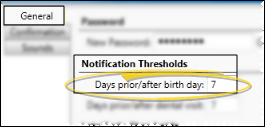
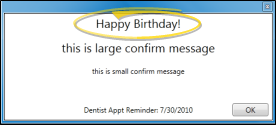
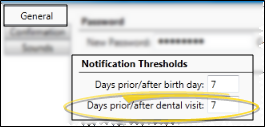
Notification thresholds - Choose if and when patients will see birthday greetings and/or dental visit reminders when they sign into your office.
Birthday notice - Enter the number of days until / since the patient's birthday to include a special birthday message. Setting the number of days to 0 disables the message.
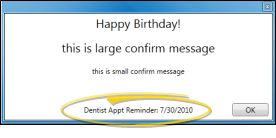
Dental visit - Specify the number of days before a dental visit is due
to display a reminder message . To disable the message, set this option to
0 (zero).
The message includes the dental visit date suggested on the Milestones
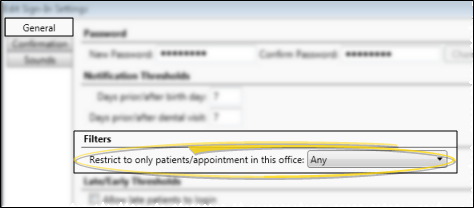
Office filter - Choose whether to allow all patients with appointments to sign in, or only patients with appointments scheduled for a specific office. If you apply a filter, and a patient from a different office attempts to sign in, that patient will see your "No Appointment" message.
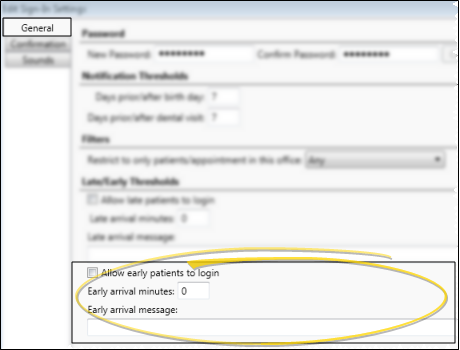
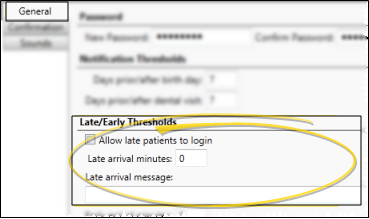
Late / early thresholds - Choose if and when patients that arrive early or late to their appointment are able to sign themselves in.
Late arrival options - Specify the number of minutes after the scheduled appointment time you consider a patient late. This field works in conjunction with the Late Arrival message, and whether you
Allow late patients to sign in. To disable the late message, set the number of minutes to 0 (zero). Setting the late arrival minutes to 0 also enables late patient sign in.
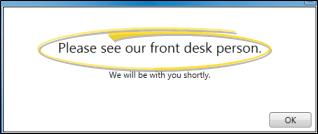
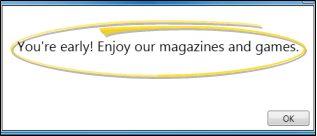
Early arrival - Specify the number of minutes before the scheduled appointment time you consider a patient early. This field works in conjunction with the Early Arrival message
Allow early patients to sign in
Save -
Change password regularly - We suggest changing your password regularly to maximize its security potential.
Practice Connect Option - You can optionally allow patients to sign in for their appointment with your Practice Connect app when they come within a certain distance of your office, and within a certain time before they scheduled appointment. See "Practice Connect" for details.
Ortho2.com │1107 Buckeye Avenue │ Ames, Iowa 50010 │ Sales: (800) 678-4644 │ Support: (800) 346-4504 │ Contact Us
Remote Support │Email Support │New Customer Care │ Online Help Ver. 8/3/2015